 Local
LocalLocalCloud MCP for AI coding agents
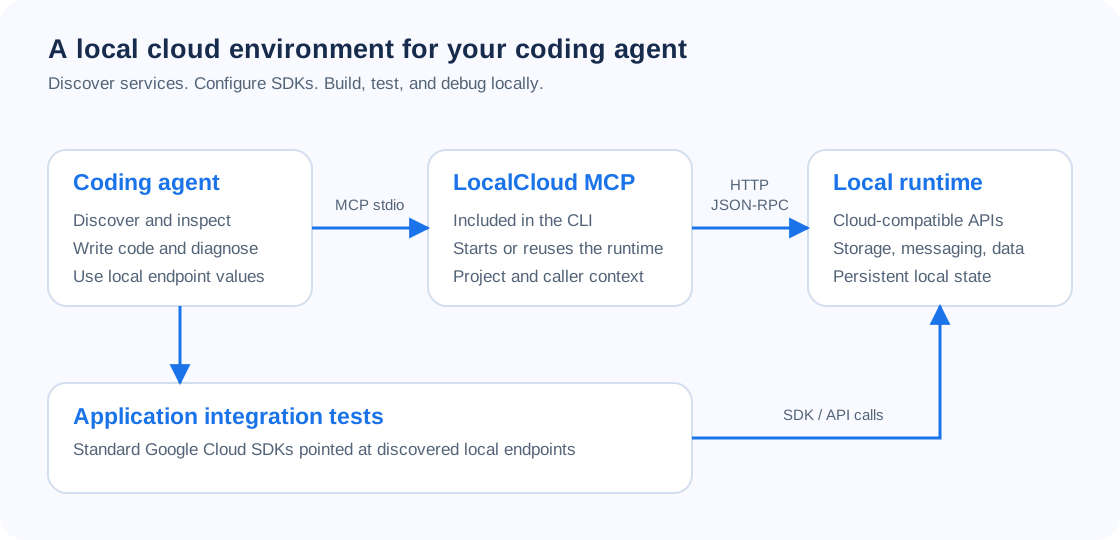
LocalCloud gives your coding agent a free local cloud environment for building, testing, and debugging Google Cloud applications. Through MCP, the agent can discover local services, obtain SDK configuration, inspect resources, query data, and diagnose application failures. Your application uses standard Google Cloud SDKs pointed at the local runtime.
The MCP bridge is included in LocalCloud CLI 0.1.9 and newer. Docker runs the cloud environment on your machine; a live Google Cloud project is not required for these local workflows.
Install and connect
On macOS, or Linux with Homebrew:
brew install LocalGCloud/tap/localcloud
lc --version
lc doctor
lc mcp install --client cursor
For an existing Homebrew installation, run brew update and brew upgrade localcloud. Confirm that lc --version reports 0.1.9 or newer.
On macOS or Linux without Homebrew:
curl -fsSL https://local.cloud/install.sh | sh
localcloud --version
localcloud doctor
localcloud mcp install --client cursor
Reload Cursor, enable the localcloud MCP server, and let it connect. The bridge starts or reuses the runtime automatically. The first connection can take longer while the runtime image downloads. To finish that download and deliberately bind newly started runtime ports to localhost first, run:
lc start --local-onlyThe signed CLI releases include macOS ARM64/x86_64 and Linux ARM64/x86_64 binaries. macOS binaries require macOS 13 or newer; Linux binaries require glibc 2.35 or newer. Native Windows binaries are not shipped; Windows users need a suitable Linux/WSL environment and matching client configuration.
Runtime version and existing environments
Use runtime 0.1.5 or newer for validated strict-client tool input and output schemas. CLI and runtime versions are independent; connecting MCP or updating the CLI reuses an existing container.
Inspect lc status. To deliberately upgrade the selected runtime while retaining its named data volume:
lc restart --image agentcloud/localcloud:0.1.5 --pullUse the same --data-volume and configuration file if you normally target a custom environment. The restart briefly interrupts clients; reconnect afterward.
Clients supporting desktop extensions can also install the LocalCloud MCP 0.1.9 bundle. The bundle includes the supported-platform CLI; Docker and runtime 0.1.5+ are still required.
Choose your coding client
| Client | Setup |
|---|---|
| Cursor | lc mcp install --client cursor |
| Claude Code | lc mcp install --client claude-code |
| Claude Desktop | lc mcp install --client claude-desktop |
| Windsurf | lc mcp install --client windsurf |
| Antigravity | lc mcp install --client antigravity |
| Codex | codex mcp add localcloud -- "$(command -v localcloud)" mcp |
| VS Code / GitHub Copilot | Add the stdio server to .vscode/mcp.json, as shown below |
| Cline | Add the server through Cline’s MCP settings editor |
| Gemini CLI | gemini mcp add --scope user localcloud "$(command -v localcloud)" mcp |
CLI 0.1.9’s --client gemini alias targets Antigravity, not Gemini CLI. Its --client all option writes the Cursor, Claude Code, Claude Desktop, Antigravity, and Windsurf configurations; use the manual instructions for Cline and Gemini CLI.
For desktop applications, use the absolute executable path from command -v localcloud. /opt/homebrew/bin/localcloud below is an Apple Silicon Homebrew example. Merge the entry into your client’s existing configuration so other MCP servers are preserved.
Cursor, Claude Desktop, and Cline
For a client that uses the mcpServers format:
{
  "mcpServers": {
    "localcloud": {
      "command": "/opt/homebrew/bin/localcloud",
      "args": ["mcp"]
    }
  }
}
Use Cline’s configuration editor rather than assuming an extension settings-file location.
VS Code
VS Code uses servers in .vscode/mcp.json:
{
  "servers": {
    "localcloud": {
      "type": "stdio",
      "command": "/opt/homebrew/bin/localcloud",
      "args": ["mcp"]
    }
  }
}
Run MCP: List Servers in the Command Palette, then start localcloud.
Give your agent its first task
Copy this prompt into your coding client:
Use the LocalCloud MCP server. List local services, check readiness, and obtain the SDK environment for this project. Check compatibility before writing a small integration test. Use only the returned local endpoints. Stop if the required operation is unavailable; do not request real Google Cloud credentials or fall back to real Google Cloud.
The first calls are localcloud_list_services with {}, followed by readiness and localcloud_get_env with {"format":"json"}. Generated endpoint values account for the running runtime’s port mappings.
| Task | Agent workflow |
|---|---|
| Build a storage and messaging feature | Discover Cloud Storage and Pub/Sub, configure the SDKs, upload a test object, publish a message, and verify the result |
| Explore local data | Browse datasets and tables, inspect database connection profiles, and run a supported query |
| Write an integration test | Read compatibility, create only test-owned resources, assert results, and clean up through the SDK |
| Debug a failure | Inspect readiness, logs, recent requests, endpoint configuration, and API schemas, then rerun the failing test |
Run the MCP walkthrough and three cloud workflows, or use the SDK examples and Terraform guide. Agents can also read the agent entry point and the machine-readable installation guide.
Services, tools, resources, and prompts
The runtime provides service and project inspection, a catalog of local management API operations, resource browsing, supported data queries, SDK/gcloud/Terraform configuration, compatibility checks, diagnostics, recipes, and test prompts.
Read the connected runtime’s tools/list, resources/list, resources/templates/list, and prompts/list results for its actual catalog. CLI versions and runtime versions are independent. Use localcloud_get_api_catalog before localcloud_call_api rather than guessing management routes.
The default data volume is shared across clients and repositories. --project-id selects a logical project; choose a separate --data-volume when you need an independent runtime. SDK operations can change local data, so tests should use their own resources and explicit cleanup.
Write and destructive MCP management operations depend on the runtime settings LOCALCLOUD_MCP_WRITE and LOCALCLOUD_MCP_DESTRUCTIVE, both disabled by default. Installing a client configuration does not enable those privileges. Local compatibility is service- and operation-specific; validate application release behavior against Google Cloud separately.
Troubleshooting
| Symptom | Next step |
|---|---|
mcp install is unavailable | Update to CLI 0.1.9+ and confirm the client launches the updated executable |
| Client rejects a tool schema or structured result | Check the running runtime version; use 0.1.5+ and reconnect after an explicit upgrade |
| Docker is unavailable | Run lc doctor, start Docker, and reconnect |
| Client cannot find the command | Use the absolute path reported by command -v localcloud |
| First connection times out | Run lc start --local-only once, then reconnect; increase the client’s startup timeout if needed |
| Runtime connection fails | Inspect lc status and lc logs --tail 100; try bridge argument --connect-timeout 60 |
| Write operation is rejected | Check its safety classification and runtime permissions; do not assume installation enabled writes |
| A tool or service is missing | Check the runtime image/version, discovered catalog, readiness, and compatibility |
The full MCP reference covers bridge architecture, flags, caller/project context, resources, and prompts. Review licensing and privacy for the artifact you install. For a problem report, include the CLI version, runtime image, client name, and sanitized error output in a CLI issue.
This comment is sent to PostHog. Do not include secrets, personal data, or customer data. See Privacy.